How to Post Anonymously in a Facebook Group (and Who Can Still See You)
Step-by-step: how to post anonymously in a Facebook group on the app and desktop, how admins turn it on, why the option is missing, and who can still see your name.
 MaherPost Team November 13, 2026 9 min read
Key takeaways
- To post anonymously, open the group, tap Anonymous post or Write something, switch on Post anonymously, write the post and submit it.
- The option only exists if a group admin has turned anonymous posting on. If you cannot see it, that is almost always the reason.
- Anonymous posts usually wait for admin approval before members see them.
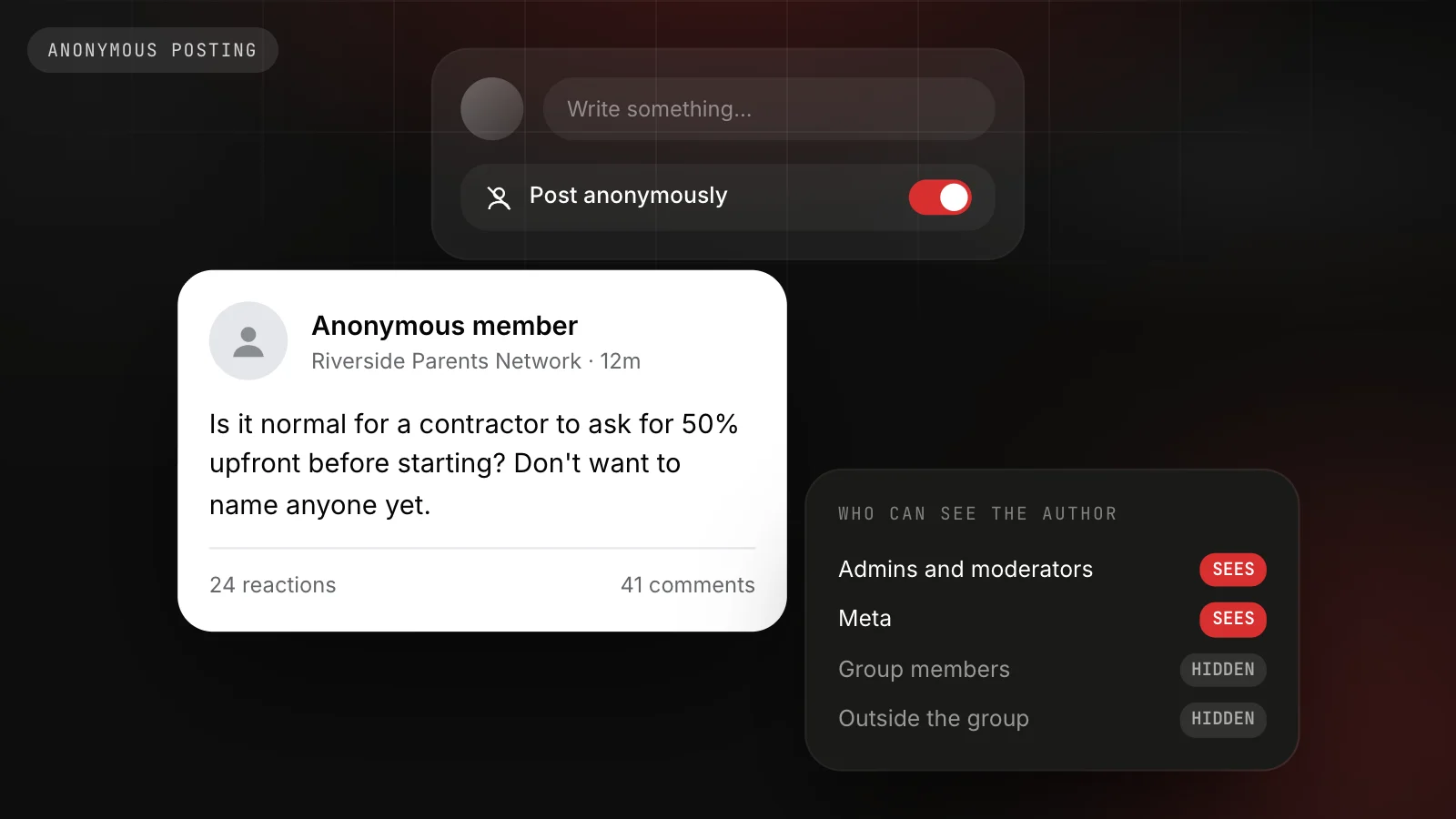
- Other members see Anonymous member. Admins, moderators and Meta can still see exactly who wrote it.
- For businesses, anonymous posting is a tool for the groups you run, never a way to promote yourself in someone else's group.
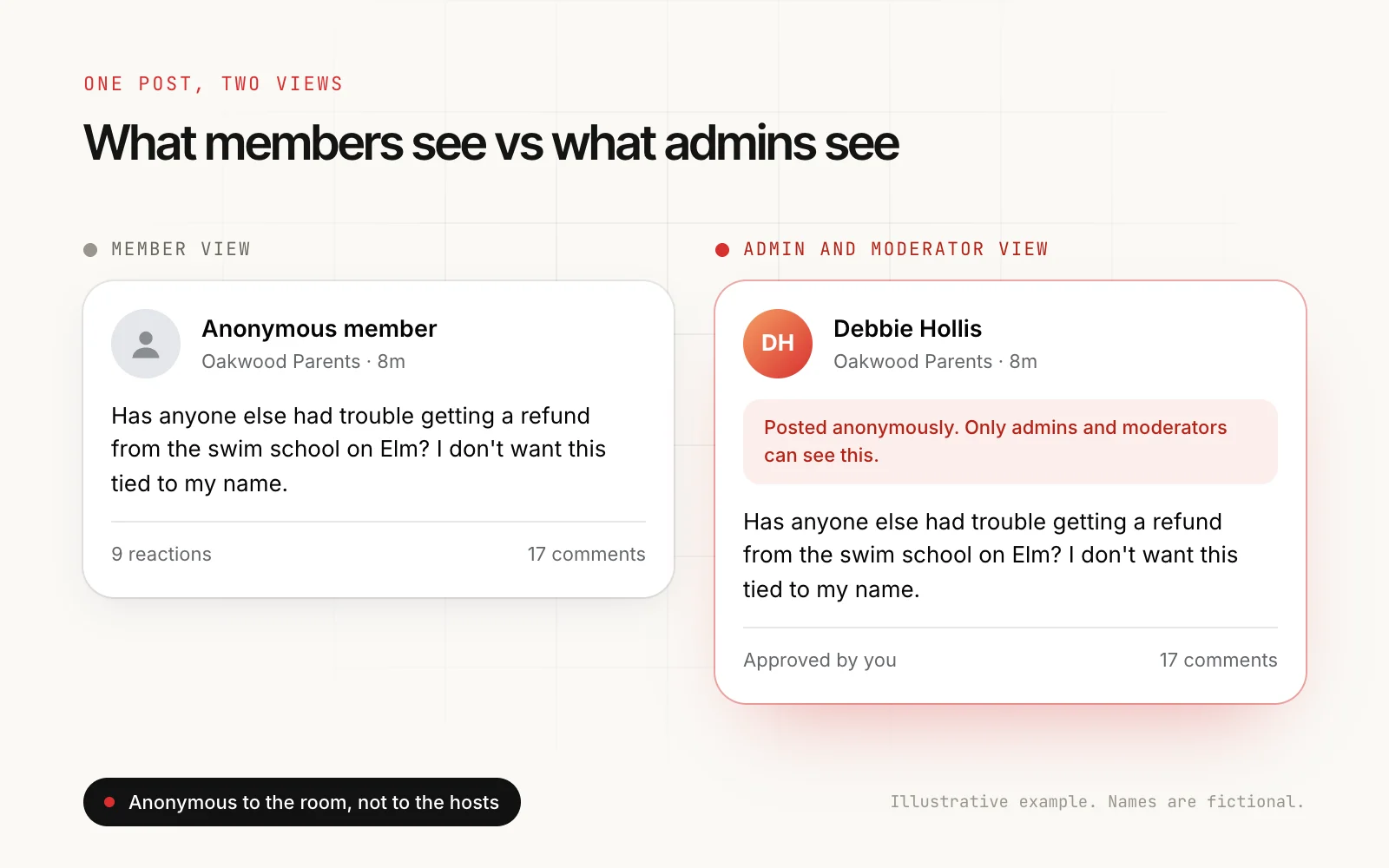
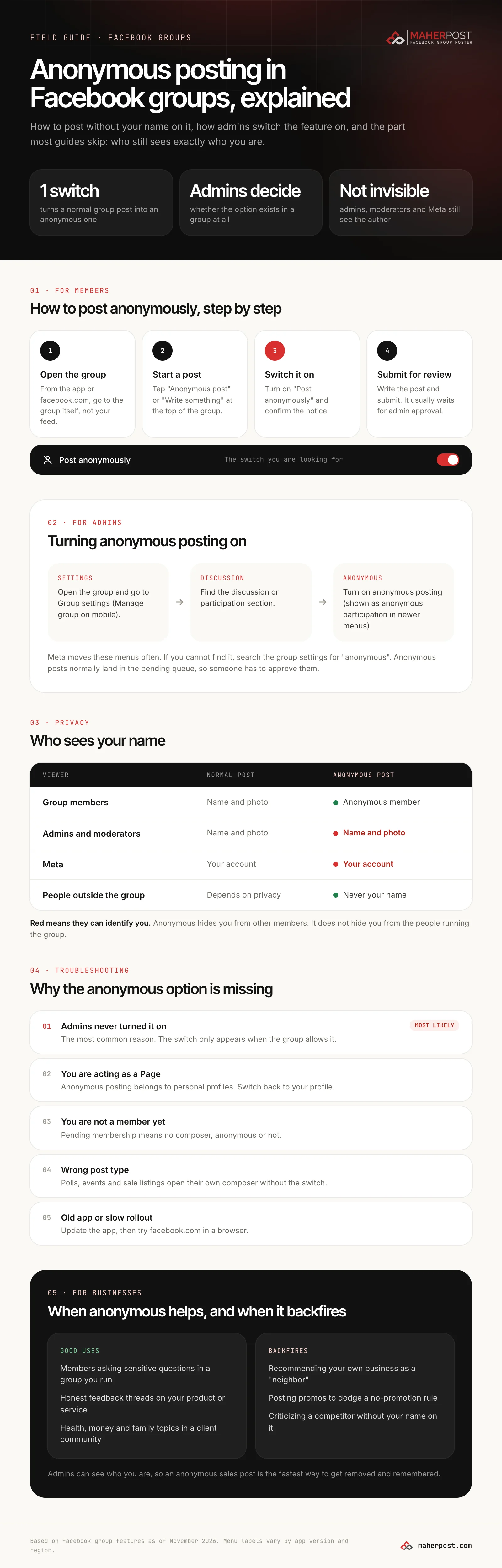
To post anonymously in a Facebook group, open the group, tap Anonymous post (or the Write something box), switch on Post anonymously, then write and submit your post. Other members see it from “Anonymous member”. Two things decide whether this works: the group’s admins must have turned anonymous posting on, and your post will usually wait in the admin approval queue before it appears. Admins, moderators and Meta can still see who you are.
That is the whole answer for most people. The rest of this guide covers the steps on each device, the admin switch, every reason the option goes missing, and what anonymous posting is good for when you run a business.
How to post anonymously in a Facebook group
The feature works the same way in the Facebook app and on facebook.com. The buttons move a little between versions, so look for the wording rather than an exact position.
On the Facebook app (iPhone and Android)
- Open the group itself. Posts you start from your own feed or profile cannot be anonymous.
- Under the group name, tap Anonymous post if you see it. If you only see Write something, tap that.
- Turn on the Post anonymously switch. Facebook shows a short notice that admins and moderators will still see your name. Tap to confirm.
- Write your post. You can add photos, but anything in them that identifies you (a face, a house number, a reflection) stays visible.
- Tap Submit or Post. In most groups you will see a message that your post is pending approval.
On a computer (facebook.com)
- Go to the group page.
- Click Anonymous post below the composer, or click Write something and look for the Post anonymously switch at the top of the composer window.
- Turn it on, confirm the notice, write the post and click Submit.
If the switch is not there on desktop either, the group does not allow anonymous posts. Jump to why the option is missing.
What happens after you submit
Anonymous posts normally go straight to the group’s pending queue. An admin or moderator reviews it, sees your name, and approves or declines it. Busy groups clear the queue in minutes. Small groups with one part-time admin can take days. If you are waiting, our guide to why a Facebook group post stays pending explains how the queue works and what you can do while you wait.
Once it is approved, members see the post from Anonymous member with a grey placeholder photo. When you reply to comments on your own anonymous post, Facebook usually lets you reply as the anonymous author too, so you do not expose yourself in the thread. Check the name shown in the reply box before you send.
Who can still see your name
This is the part people get wrong, and it matters more than the steps.
| Who is looking | Normal post | Anonymous post |
|---|---|---|
| Other group members | Your name and photo | ”Anonymous member” |
| Group admins and moderators | Your name and photo | Your name and photo |
| Meta | Your account | Your account |
| People outside the group | Depends on the group’s privacy | Never your name |
Anonymous posting is a curtain between you and the other members. It is not a curtain between you and the people who run the group, and it does nothing about Meta, which links every post to the account that made it. Use it to ask an awkward question in a parenting group or a health group. Do not use it to say anything you would not want the admins to connect to you.
A few practical leaks to watch for:
- Details in the post. “My husband’s bakery on Elm Street” is not anonymous, whatever the label says.
- Photos. Faces, cars, addresses and screenshots with your name in a corner.
- Your own replies. If you comment on your anonymous post from your normal profile by mistake, the thread will connect the two.
- Small groups. In a 40-person group, people can often guess.
How admins turn anonymous posting on
If you run a group and members have asked for it:
- Open the group and go to Group settings (on mobile, tap Manage group first, then Group settings).
- Find the section about discussion or participation. In newer menus the setting is called Anonymous participation. In older ones it is Anonymous posting.
- Turn it on and save.
Meta moves group settings around regularly, so if the menu does not match, use the search box at the top of the settings page and type “anonymous”.
Once it is on, members see the Anonymous post button, and anonymous submissions arrive in Pending posts with the author’s name visible to you. Treat them like any other post: approve the ones that fit the rules, decline the ones that do not. Some admins add a rule specifically for anonymous posts, such as “Anonymous posts are for personal questions only, not recommendations for your own business.” If you need help writing rules like that, the free Facebook group rules generator drafts a full set you can paste in.
Why the anonymous option is missing
If you cannot find the switch, work down this list. The first reason covers the large majority of cases.
- The admins never turned it on. The option only appears in groups that allow it. Message an admin and ask, or post normally.
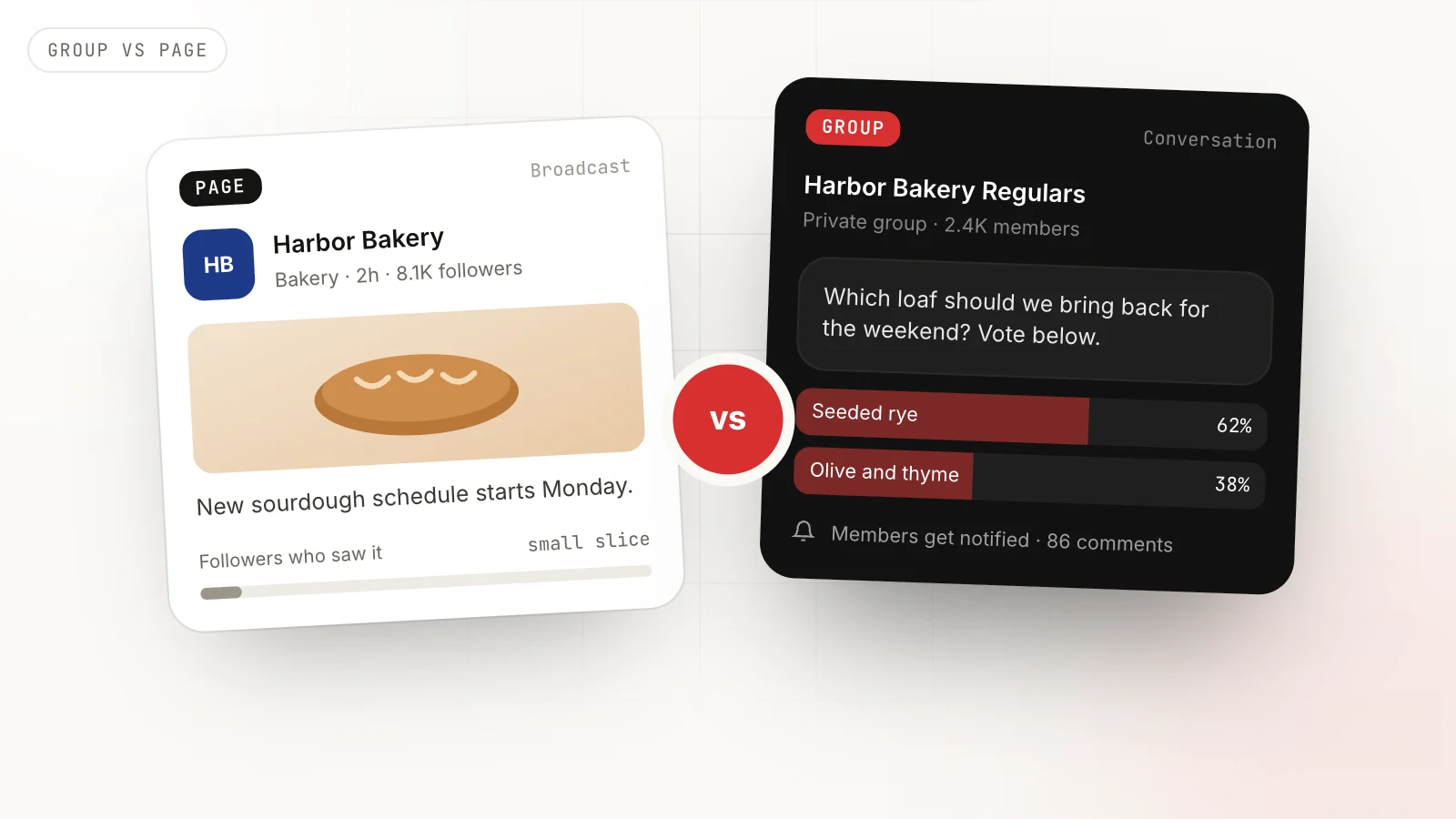
- You are acting as a Page. If you switched to your business Page to interact in the group, anonymous posting is not offered. Switch back to your personal profile.
- Your membership is still pending. Until you are approved, there is no composer at all.
- You opened a different post type. Polls, events and sale listings in buy and sell groups open their own composer, without the anonymous switch.
- Your app is out of date, or the feature has not reached your account yet. Update the app, then try facebook.com in a browser. Meta rolls features out gradually, and the app and desktop are not always in step.
If the composer is missing entirely, not only the anonymous switch, that is a different problem. Our troubleshooting guide on why you can’t post in a Facebook group walks through every cause.
When anonymous posting helps a business, and when it backfires
Most guides stop at the steps. If you use Facebook groups for work, the more useful question is where anonymity fits.
Good uses, in groups you run
If your business runs a customer or community group, turning anonymous posting on can lift participation on exactly the topics that matter most:
- A financial planner’s client group where members ask about debt or divorce.
- A clinic or fitness coach’s community where people describe symptoms or body image worries.
- A software company’s user group collecting honest feedback that customers would not sign their name to.
You still see who posted, so you can follow up privately when it is appropriate, and the questions people ask anonymously are often the best material for your next posts and FAQ pages.
Bad uses, in other people’s groups
Three patterns get businesses removed from groups, and admins have seen all of them:
- Recommending yourself as a “neighbor”. Someone asks for a plumber, and an anonymous member replies with your number. The admin sees it is you.
- Dodging a no-promotion rule. If a group bans promotional posts, posting the promo anonymously does not change what it is. Read the group’s rules for promotional posts and use the promo thread or promo day instead.
- Criticizing a competitor. It is the fastest way to get banned and to become a story in a local group.
The honest approach works better and lasts longer: be a named, helpful member, answer questions in your field, and promote only where the rules allow it. Our guide to promoting your business in Facebook groups covers how to do that without getting declined.
Anonymous posting at a glance
- Where: only in groups whose admins turned it on.
- How: Anonymous post or Write something, then the Post anonymously switch.
- Who sees you: admins, moderators and Meta. Not other members.
- Approval: usually required before the post goes live.
- As a Page: not available.
- For business promotion: a bad idea in other people’s groups, and a useful participation tool in your own.
If your work involves posting to many groups as yourself, under your own name, that is where MaherPost comes in: one draft, a different version for each group, paced delivery and a log that shows which groups approved, declined or left your post pending.
Put this into practice.
MaherPost posts to every Facebook group you have joined, with spintax, safe pacing and a log of every delivery. $29 a month.
Written by the MaherPost Team
We build MaherPost and run group campaigns with it every week. These guides come from what we see working, and what gets accounts in trouble. Questions or corrections: support@maherpost.com.